
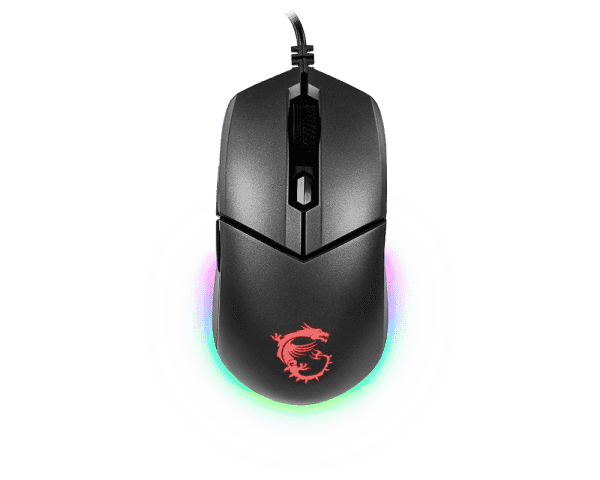
Understanding the Basics of a Computer Mouse Leave a comment
When you think about upgrading your computer, you probably focus on the processor, RAM, or graphics card. But one small device that has a big impact on your daily experience is the mouse. Whether you’re working, gaming, or just browsing the internet, the right mouse can make your tasks smoother, faster, and more comfortable. In this blog, we’ll explore what makes a good mouse, the different types available, and how you can pick the perfect one for your needs.
Why the Mouse Matters
The mouse is more than just a pointing device—it’s your main connection to your computer. Every click, scroll, and movement depends on it. A good mouse can:
- Improve productivity by making navigation faster and more accurate.
- Enhance comfort, especially if you spend long hours at the computer.
- Provide better control for gaming and creative tasks.
- Reduce the risk of strain or injury caused by poor ergonomics.
Simply put, choosing the right mouse makes your entire computing experience more enjoyable and efficient.
Types of Computer Mice
There isn’t a one-size-fits-all mouse. Depending on your needs, you’ll find different styles and technologies:
1. Wired Mouse
- Connects directly to your computer via USB.
- Offers low latency and reliable performance.
- Commonly used for gaming and office work where stability is important.
2. Wireless Mouse
- Connects through Bluetooth or a USB dongle.
- Offers freedom of movement and a clutter-free desk.
- Runs on batteries or rechargeable cells.
- Great for portability and everyday use.
3. Gaming Mouse
- Designed for precision, speed, and customization.
- Features include adjustable DPI (sensitivity), programmable buttons, and RGB lighting.
- Ideal for competitive gamers who need accuracy and quick response times.
4. Ergonomic Mouse
- Shaped to reduce strain on the wrist and arm.
- Helps prevent issues like carpal tunnel syndrome.
- Perfect for professionals and heavy computer users.
5. Trackball Mouse
- Uses a ball on top that you rotate with your fingers or thumb.
- Great for limited desk space or people with mobility issues.
6. Vertical Mouse
- Keeps your hand in a natural handshake position.
- Significantly reduces wrist strain.
- Increasingly popular among office workers.
Key Features to Look for in a Mouse
When buying a mouse, consider the following features to make sure it fits your needs:
1. DPI (Dots Per Inch)
- Higher DPI means faster cursor movement.
- Adjustable DPI is great for switching between tasks (e.g., precise design work vs. fast-paced gaming).
2. Polling Rate
- Measured in Hz, this shows how often the mouse reports its position to the computer.
- A higher polling rate means smoother and more responsive movement.
3. Comfort and Design
- Look for a mouse that fits your hand size and grip style (palm, claw, or fingertip).
- Ergonomic designs reduce strain during long hours of use.
4. Buttons and Customization
- Extra buttons can be programmed for shortcuts, macros, or gaming controls.
- Useful for productivity tasks like copy, paste, or switching between apps.
5. Battery Life (Wireless Mice)
- Some wireless mice last weeks or months on a single charge.
- Others include fast-charging features for convenience.
6. Build Quality
- A solid, durable mouse lasts longer and provides better performance.
- Gaming mice often have stronger switches rated for millions of clicks.
Choosing the Right Mouse for Your Needs
The best mouse depends on how you use your computer:
- For Office Work & Productivity:
Choose an ergonomic wireless mouse with long battery life and comfortable design. Extra buttons for shortcuts can improve workflow. - For Gaming:
A wired or high-performance wireless gaming mouse with customizable DPI, RGB lighting, and programmable buttons is ideal. - For Traveling:
Compact wireless mice with Bluetooth connectivity are portable and easy to carry. - For Designers & Creatives:
A mouse with high DPI precision, smooth scrolling, and ergonomic support works best. Some professionals even prefer trackball mice for fine control.
Common Mistakes to Avoid
When buying a mouse, people often make mistakes that affect their comfort and performance. Here are a few to avoid:
- Choosing style over comfort: A flashy RGB mouse may look cool but won’t help if it causes hand strain.
- Ignoring hand size: A mouse that’s too big or too small will feel uncomfortable over time.
- Going too cheap: Budget mice may work for basic use but often lack durability and precision.
- Not considering usage needs: Don’t buy a gaming mouse if you only use your PC for browsing and emails.
Tips for Maintaining Your Mouse
To get the most out of your mouse, follow these simple care tips:
- Clean the surface and sensor regularly for smooth performance.
- Use a good mouse pad for precision and to extend the lifespan of the mouse feet.
- For wireless mice, keep spare batteries or charge them regularly.
- Avoid dropping the mouse or exposing it to dust and moisture.
Final Thoughts
A mouse might seem like a small part of your computer setup, but it plays a big role in how you interact with your system. From gaming to productivity to everyday browsing, the right mouse makes tasks faster, easier, and more comfortable.
When buying a mouse, think about your needs, comfort, and long-term use. Invest in one that not only fits your hand but also matches your lifestyle—whether that’s gaming, designing, or working long hours. A well-chosen mouse is an investment in your productivity, health, and overall computing experience.
